
DS Records (DNSSEC)
You can add, modify, and delete DS (DNSSEC) records for your domains from the DNS tab of the domain manager.
Navigate to DNSSEC settings
- Go to the Domain Manager page within your account
- Click the applicable domain name
- Open the DNS tab
- Scroll to the DNSSEC section (below DNS Templates and above Domain Forwarding)
DNSSEC management is not available for all domains. If the DNSSEC toggle is disabled, the registry for that domain does not support DS record management through our system.
Add a DS record
To add your first DS record:
- Turn the DNSSEC toggle to ON
- Enter the required record details and click Submit
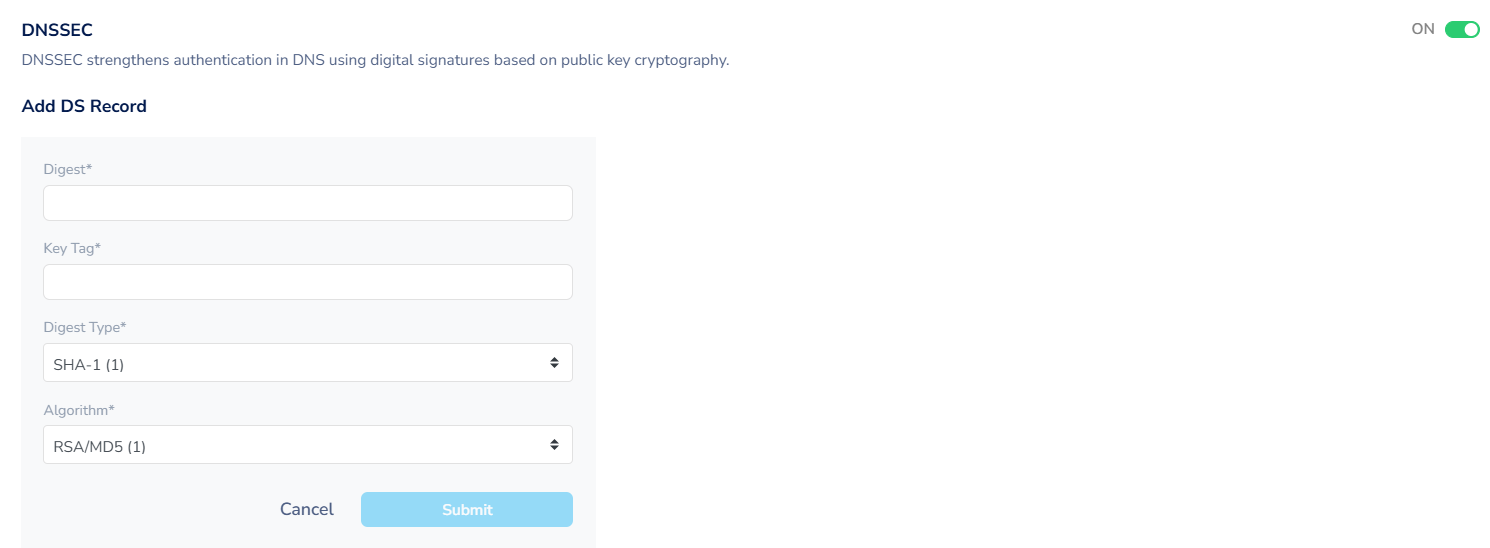
To add another DS record when one or more already exist:
- In the Current DS Records table, click Add DNSSEC Record
- Enter the required record details and click Submit
The fields shown depend on your domain type. Most domains use Digest, Key Tag, Digest Type, and Algorithm. Some domains instead use Pubkey, Flags, and Algorithm.
Modify a DS record
- Locate the record in the Current DS Records table
- Click the edit icon for the record you want to change
- Update the record details and click Submit
Delete DS records
- To delete a single record, click the delete icon next to that record in the table and confirm the prompt
- To remove all DS records at once, turn the DNSSEC toggle to OFF and confirm the prompt
Please make sure only to manage DS records for your domain if you are comfortable with DNSSEC. We do not provide support for the configuration of third-party name servers and your domain will stop resolving correctly if your name servers are not configured correctly when associating DNSSEC resource records.