Effortlessly Install WordPress on NameSilo Hosting: A Step-by-Step Guide

Embarking on a digital journey with WordPress is an exciting venture, and NameSilo makes this process seamless with its intuitive hosting solutions. Whether you're setting up a personal blog, a business website, or an online store, follow these straightforward steps to install WordPress on your NameSilo hosting plan and bring your online vision to life.
Step 1: Choose Your Hosting Plan
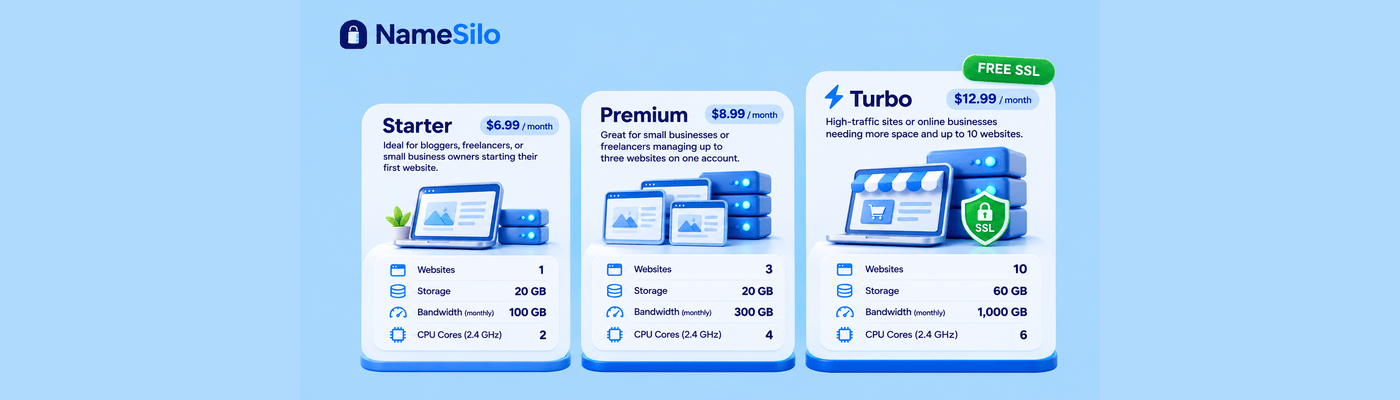
First things first, you'll need to select a hosting plan that suits your needs. Visit NameSilo's hosting page to review the available options. From a starter plan to a more robust Turbo plan, there's a plan for every type of project. Once you've made your selection, you're ready to dive into the setup process.
Before You Begin: Change Your Name Servers
Remember to update your domain's name servers to NameSilo's hosting name servers to ensure your domain connects flawlessly to your WordPress site. We recommend doing this right after purchasing your hosting plan, as outlined in our "How to Change Nameservers" guide. This proactive step facilitates a smoother WordPress setup and domain integration.
NameSilo’s Hosting NameServers:
NS1.HOSTSILO.COM |
NS2.HOSTSILO.COM |
Step 2: Access cPanel
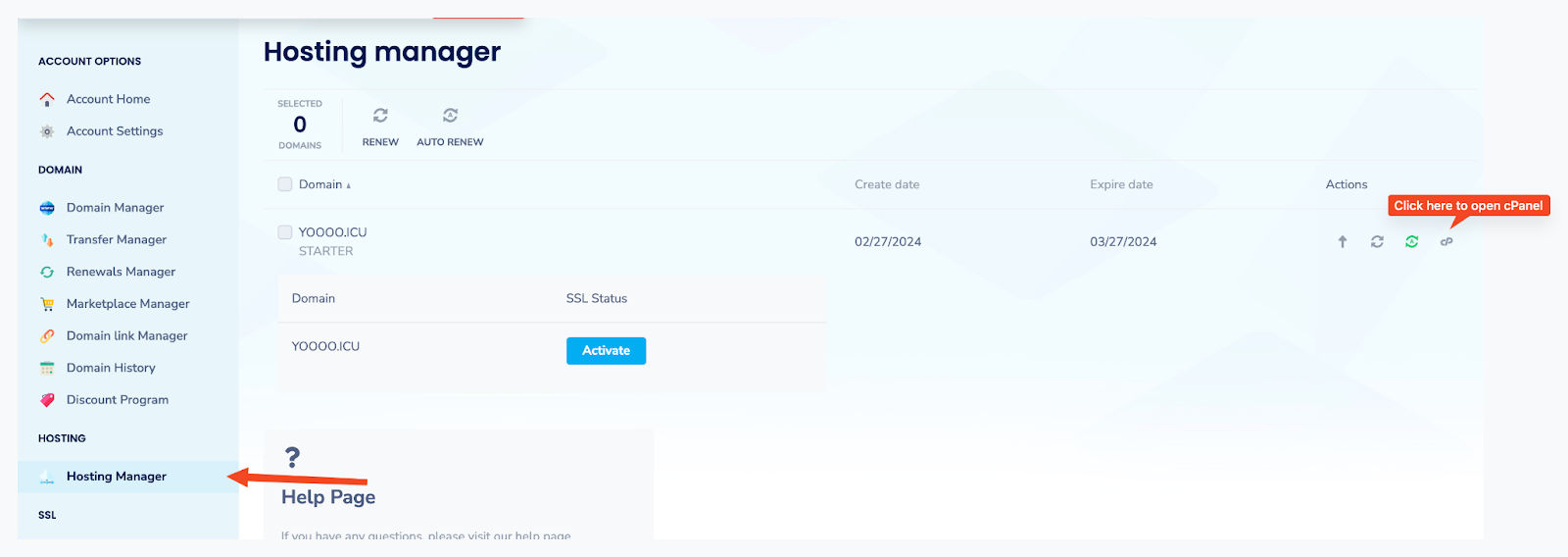
After purchasing your hosting plan, navigate to the Hosting Manager from your NameSilo account dashboard. Here, you'll find access to cPanel, the heart of your hosting environment. If your setup is pending, give it about 5-10 minutes to complete.
Step 3: Locate WordPress in Applications
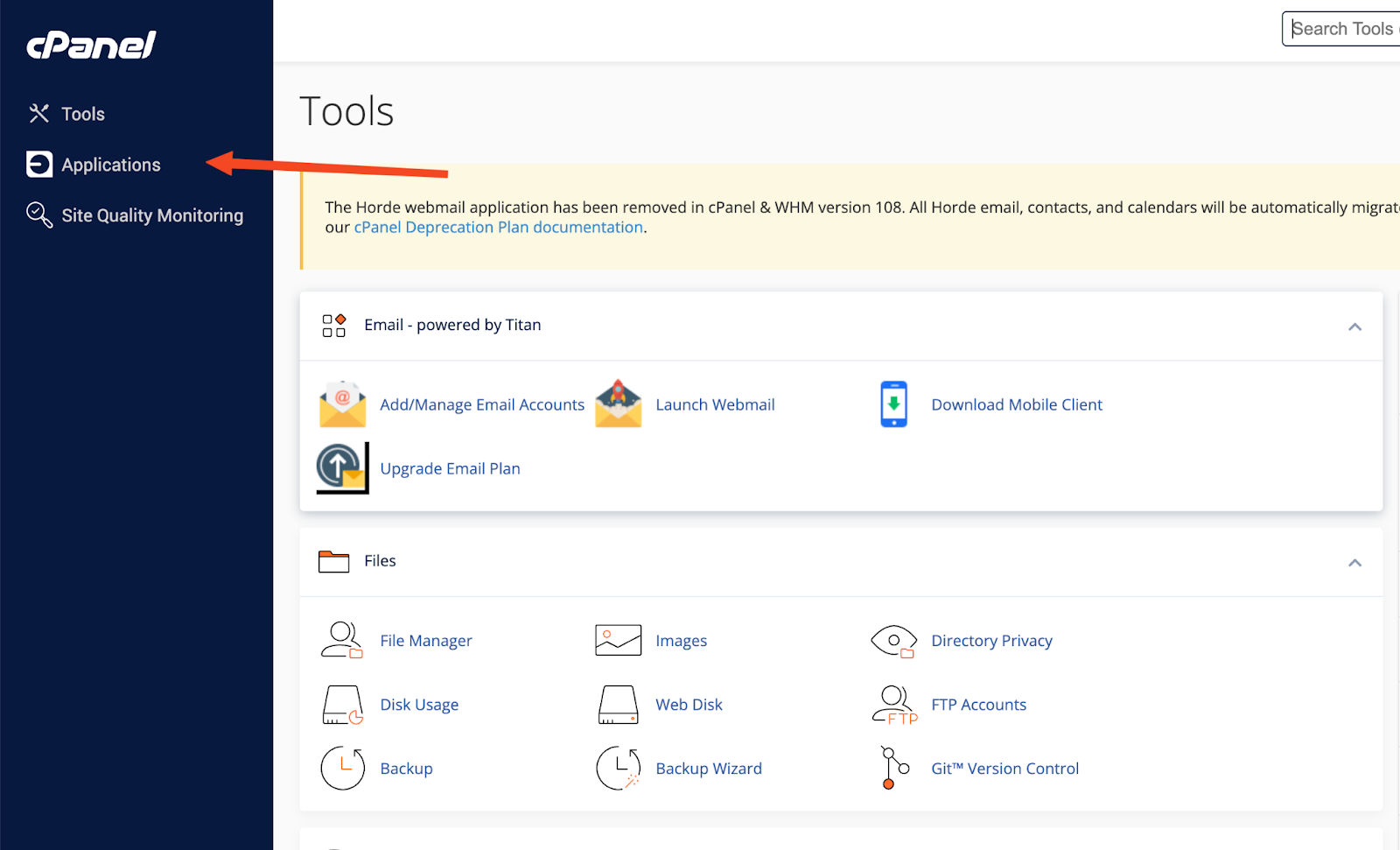
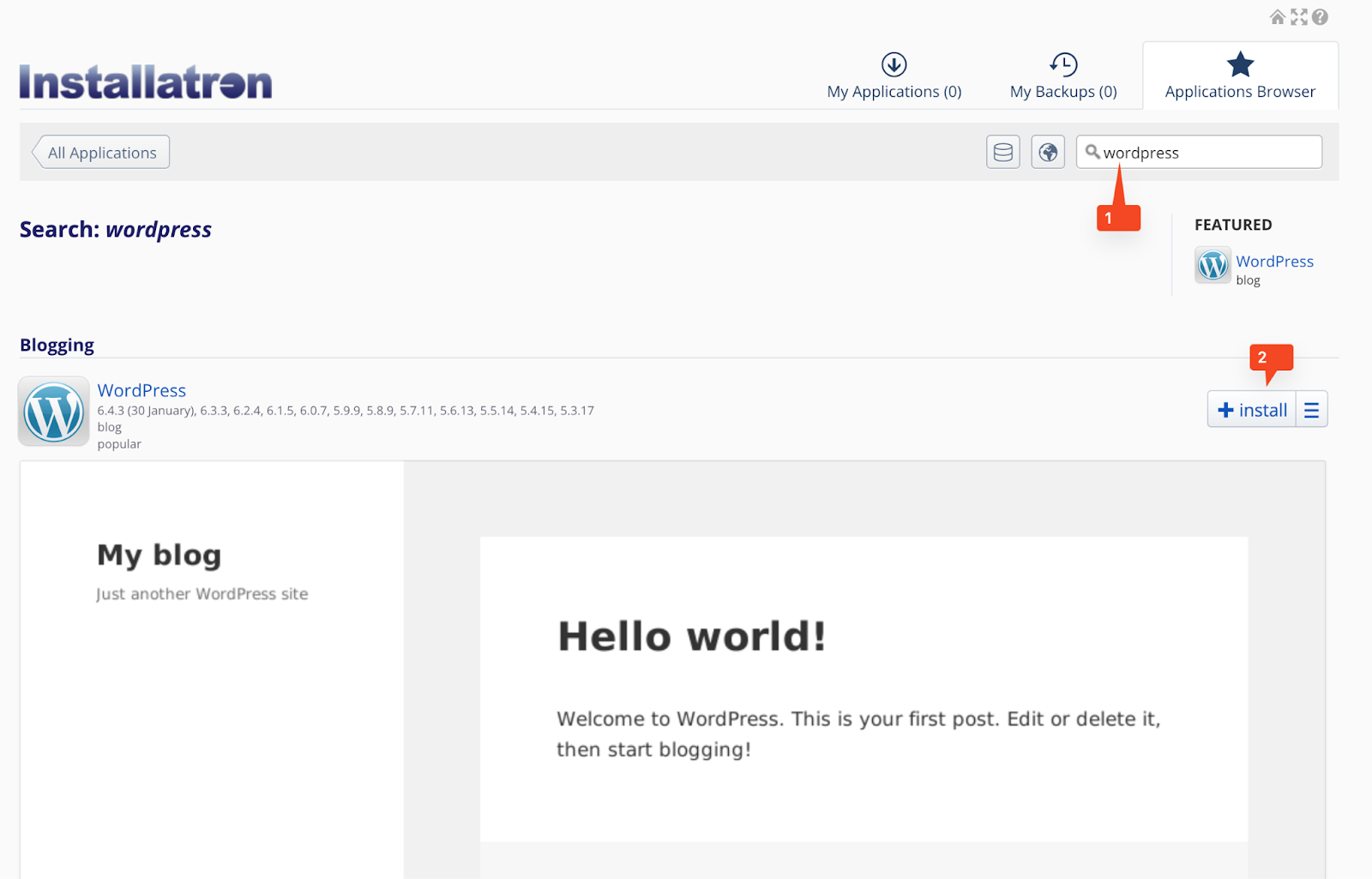
In cPanel, click on "Applications" from the left sidebar to explore the software available for installation. Search for "WordPress" in the application list.
Step 4: Begin WordPress Installation
Click on "Install" next to WordPress. You'll be prompted to fill in essential details for your WordPress site:
Domain Selection: Choose the domain where you want to install WordPress. Opt for the HTTPS version to enhance site security, especially if you're planning to install an SSL certificate.
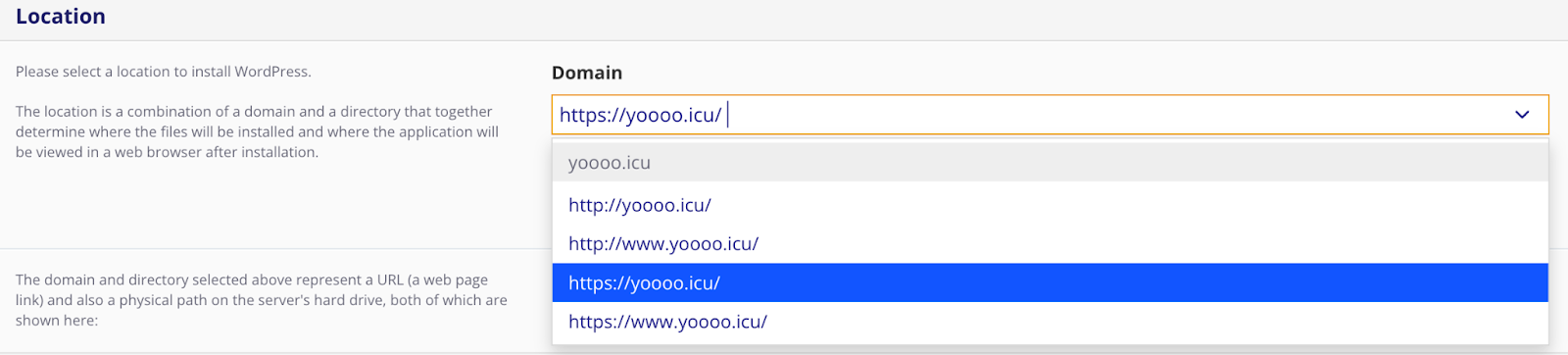
Directory: Leave the directory option empty to install WordPress on the root of your domain, or specify a directory if you have a different site structure in mind.

Version Selection: Always select the latest version of WordPress to ensure you have the newest features and security updates.

Site Details: Enter your website's title and description, and create an admin username and password. These credentials will be your key to accessing the WordPress dashboard.
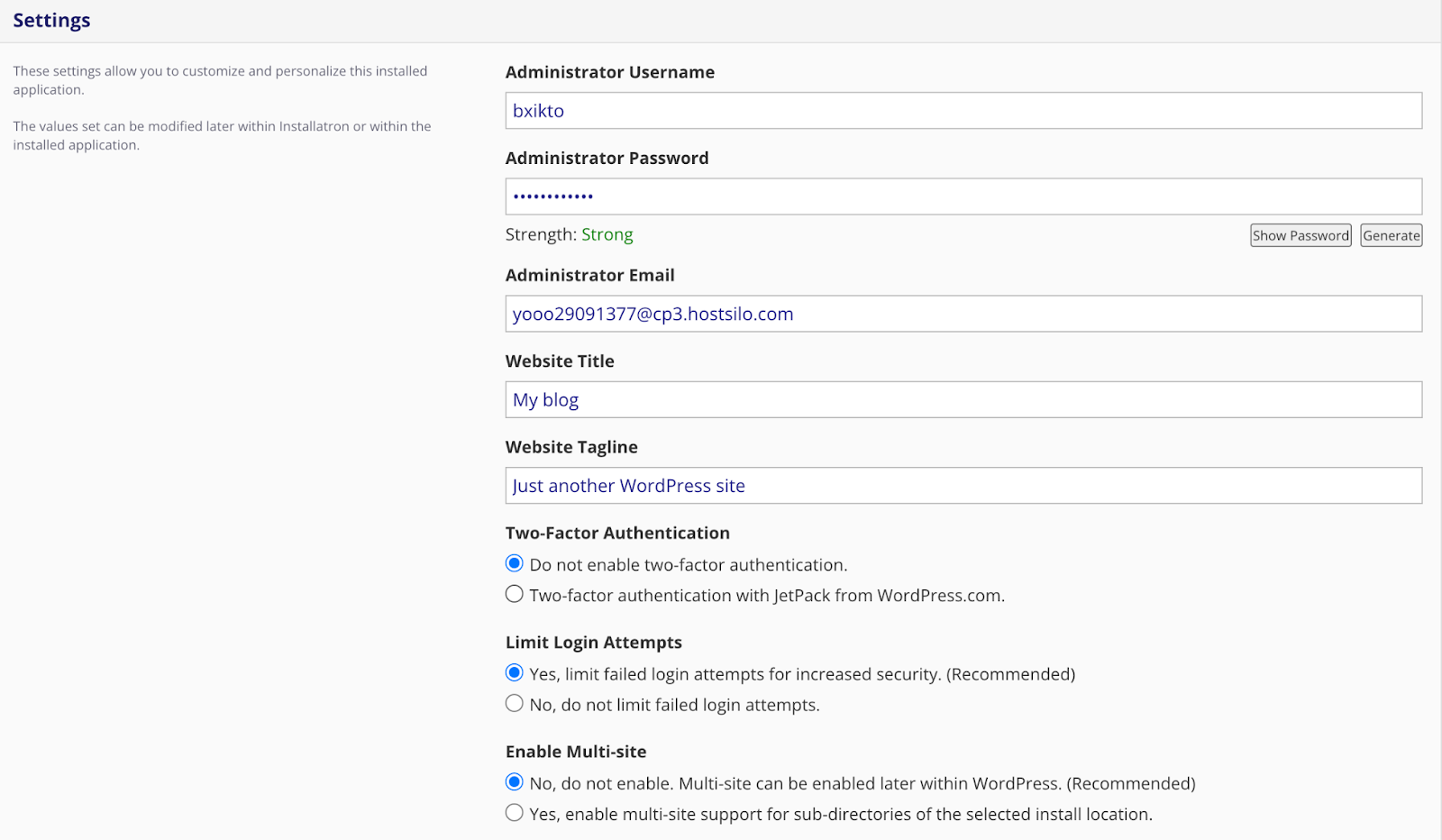
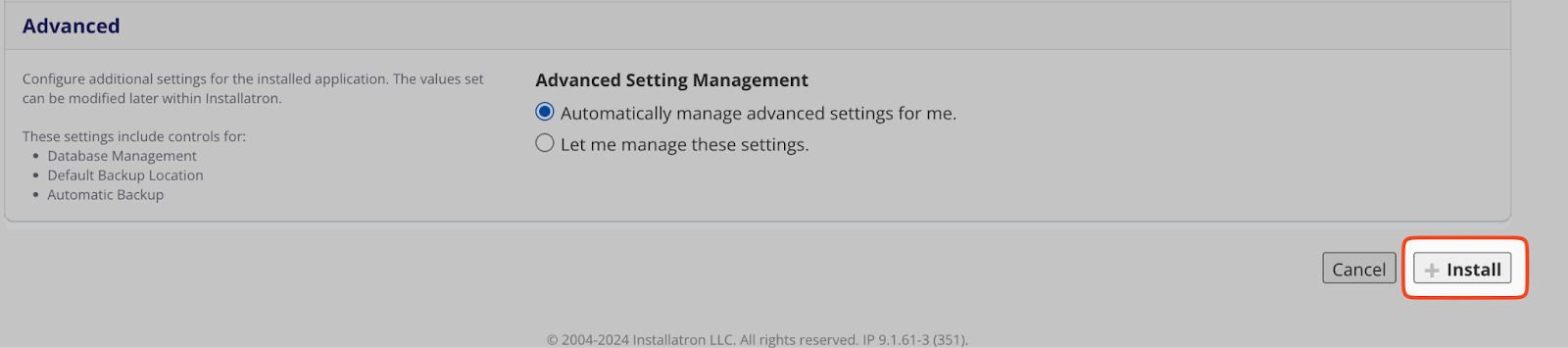
Keep the default settings for any other options and click 'Install'. The installation process will commence, transforming your hosting space into a ready-to-customize WordPress site.
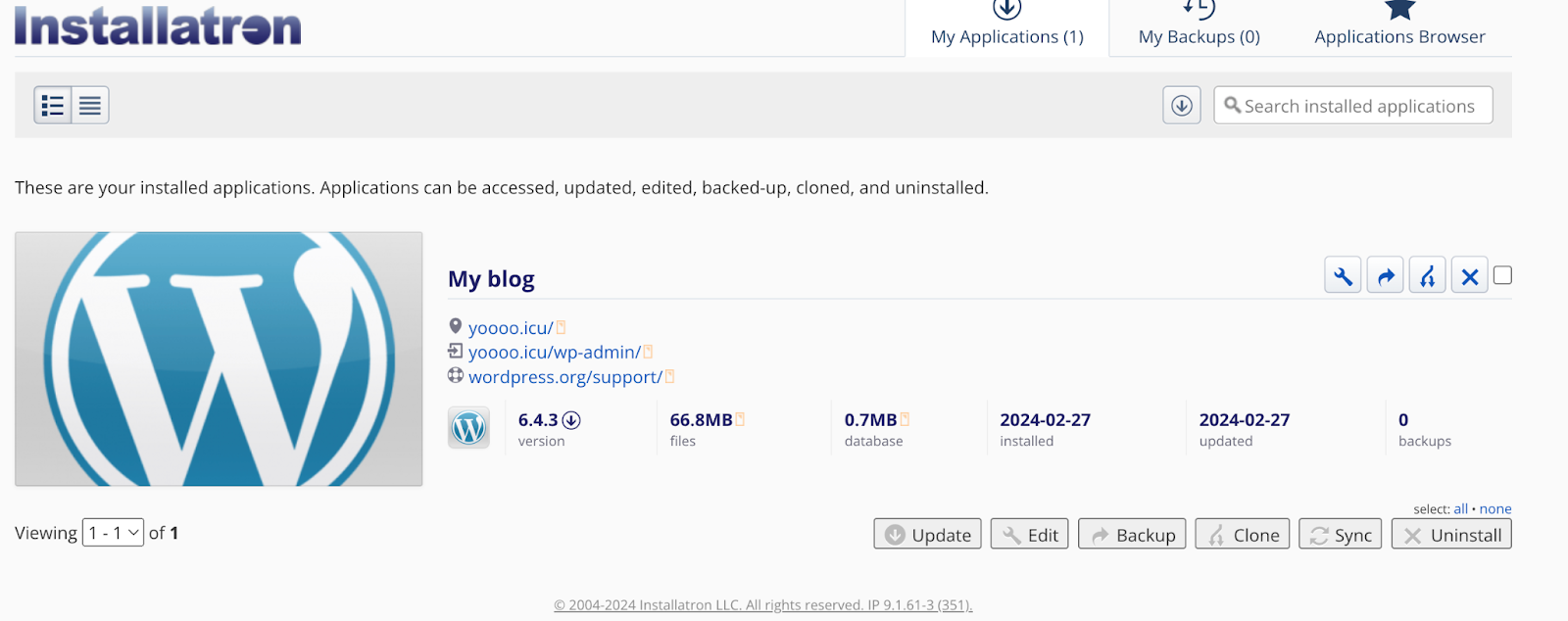
With NameSilo, installing WordPress on your hosting plan is a breeze, setting the stage for your online presence. By following these simple steps, you can quickly launch your website, ready for customization and content. Remember, a successful website begins with a solid foundation, and NameSilo's hosting solutions provide just that. Embrace the simplicity of our platform and start building your digital dream today.
NameSilo Staff
The NameSilo staff of writers worked together on this post. It was a combination of efforts from our passionate writers that produce content to educate and provide insights for all our readers.